> For the complete documentation index, see [llms.txt](https://help.rechat.com/llms.txt). Markdown versions of documentation pages are available by appending `.md` to page URLs; this page is available as [Markdown](https://help.rechat.com/appendix/brokerage-set-up/marketing-template-guidelines/figma/print-templates/xpressdocs-integration-workflow.md).
# Xpressdocs Integration - Workflow
This section describes how a template is set up for print through Rechat’s Figma plugin and how it is associated with Xpressdocs products for production.
1. **Create a Template** ([How to create a Print Template](/appendix/brokerage-set-up/marketing-template-guidelines/figma/print-templates.md))
Options:
* Create a new frame manually
* Set **Medium = Print** and add a new page while in the **Print Layout** tab.
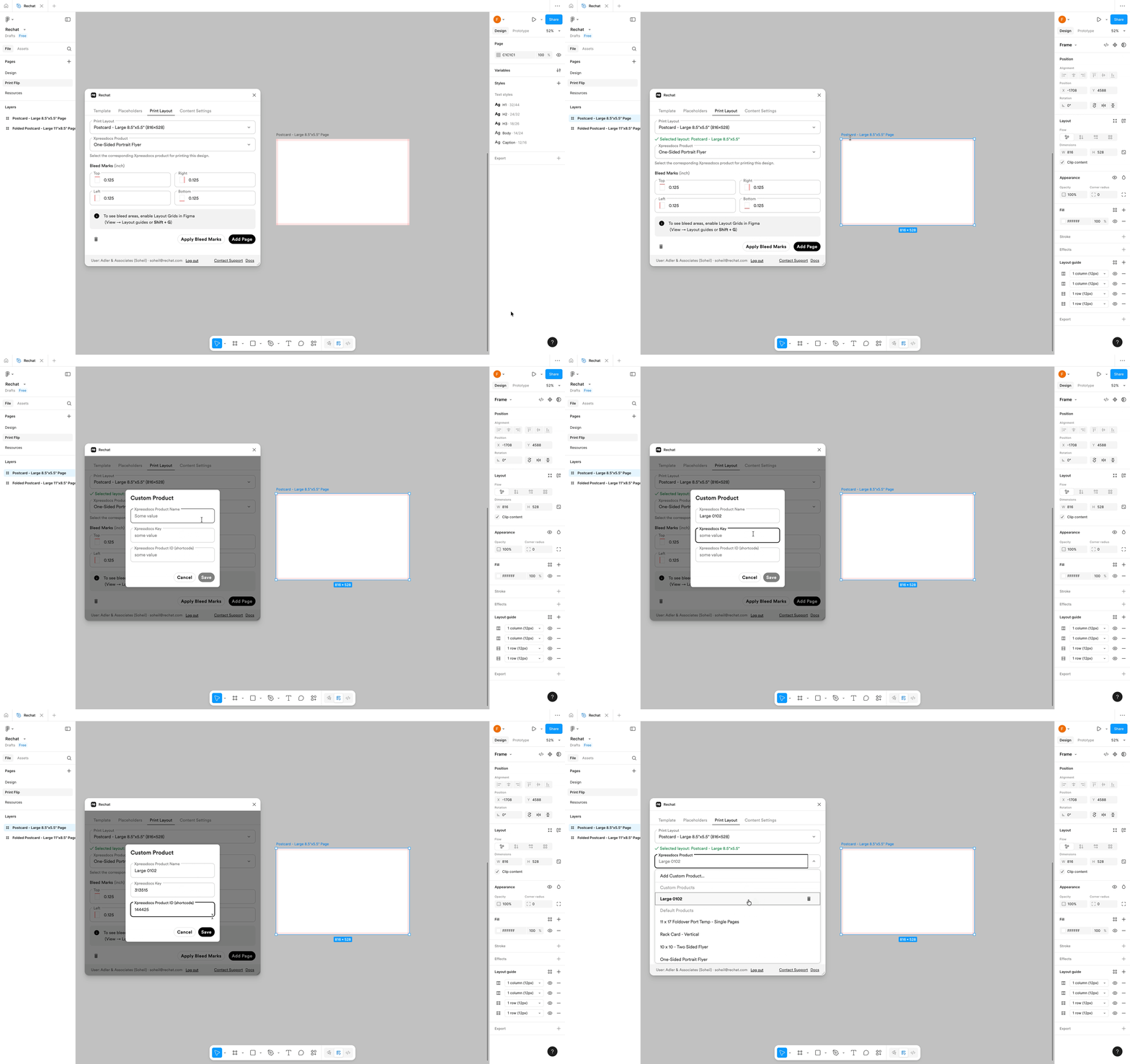
2. **Select a Print Layout**
Users must select a [**Print Layout**](/appendix/brokerage-set-up/marketing-template-guidelines/figma/print-templates/print-layout-sizes.md) from the predefined catalog supported by Rechat.\
These layouts represent standard print formats (e.g., postcards, folded brochures, newsletters).
Select a print layout
{% hint style="info" %}
This step determines the working canvas and ensures that output matches real-world sizes.
{% endhint %}
3. Assign an Xpressdocs Product
Once a Print Layout is selected, the user must associate it with an **Xpressdocs Product**.
There are two options:
#### A. Select a Predefined Product
Rechat maintains a library of commonly used Xpressdocs products. Users can select one directly.
Select a built-in Xpressdocs product
#### B. Add a Custom Xpressdocs Product.
If a brokerage has contract-specific products not included in the preset library, users can define their own.
Required fields:
| Field | Description |
| ------------------------------------- | --------------------------- |
| **Product Name** | Display name within Rechat |
| **Xpressdocs Key** | Routing identifier |
| **Xpressdocs Product ID (Shortcode)** | SKU / Contract product code |
{% hint style="info" %}
Custom products represent negotiated items between the brokerage and Xpressdocs and allow correct routing in downstream processing.
{% endhint %}
### Submission Behavior
When the template is submitted, the Rechat plugin sends the artwork and the selected Xpressdocs product metadata to Rechat and stores this association.
\
Later, when the user wants to print, they open the template in Rechat → go to **ProPrint** → choose **Xpressdocs** as the service provider (Xpressdocs product is populated and preselected), then continue the flow on the Xpressdocs site.
---
# Agent Instructions
This documentation is published with GitBook. GitBook is the documentation platform designed so that both humans and AI agents can read, navigate, and reason over technical content effectively. Learn more at gitbook.com.
## Querying This Documentation
If you need additional information that is not directly available in this page, you can query the documentation dynamically by asking a question.
Perform an HTTP GET request on the current page URL with the `ask` query parameter, and the optional `goal` query parameter:
```
GET https://help.rechat.com/appendix/brokerage-set-up/marketing-template-guidelines/figma/print-templates/xpressdocs-integration-workflow.md?ask=&goal=
```
`ask` is the immediate question: it should be specific, self-contained, and written in natural language.
`goal` is optional and describes the broader end goal you are ultimately trying to accomplish on behalf of the user. GitBook uses it to tailor the answer towards what is most useful for that goal.
The response will contain a direct answer to the question and relevant excerpts and sources from the documentation.
Use this mechanism when the answer is not explicitly present in the current page, you need clarification or additional context, or you want to retrieve related documentation sections.